
IN THIS ARTICLE
Class Creation Wizard
The Class Creation Wizard generates the boilerplate for a new O3DE C++ class: source files, CMake registration, and module descriptor entries.
You pick a template and fill in the input fields. The wizard outputs the final files.
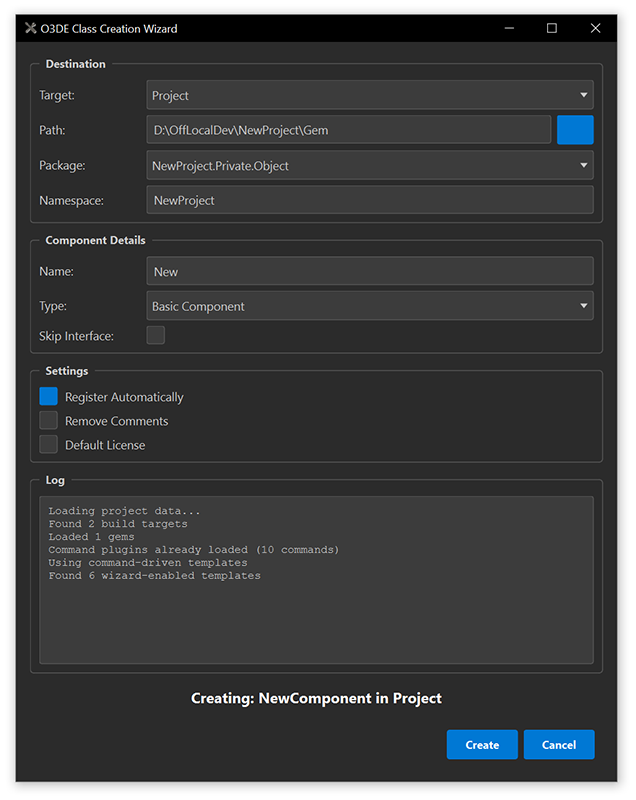
New to the wizard? Start with Getting Started for a step-by-step walkthrough. Prefer the command line? See CLI Quick Start.
To author your own templates and commands, or to review the wizard’s architecture, see the Class Creation Wizard Developer Guide.
Launching
From the O3DE Editor, select File > New Component.
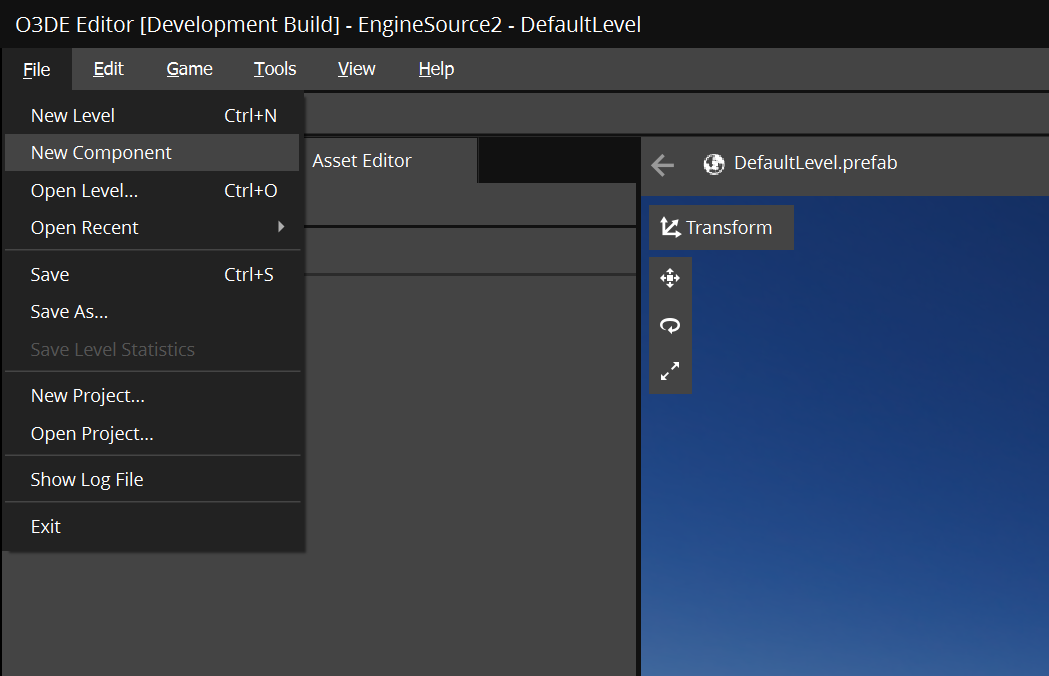
Or launch it standalone from your O3DE engine’s Tools/ClassCreationWizard/ directory:
python ClassWizard.py --engine-path "C:\o3de" --project-path "C:\MyProject"
Both --engine-path and --project-path are required. The wizard needs your project path to resolve your build targets correctly.
Templates
Follow the Getting Started guide for a step-by-step walkthrough to create the following components.
| Template | What It Creates |
|---|---|
| Basic Component | A standard game component. |
| Level Component | A component that attaches to the level entity. |
| System Component | An engine-level system component that activates automatically. |
| LyShine Component | A UI component for the LyShine (UI 2.0) system. |
| Data Asset | A custom data asset type with its own asset handler. Also known as Generic Asset. |
| Attimage | An attachment image asset for rendering features. |
Your project or gems may add their own templates too – those show up in the same dropdown alongside these.
Going Further
Follow Getting Started to use the GUI, or CLI Quick Start to use the wizard from the command line. To author your own templates and commands, or to understand the architecture of the system, see the Class Creation Wizard Developer Guide.