
IN THIS ARTICLE
Managing Crowds with Detour Crowd Navigation
The Detour Crowd Navigation component allows you to manage multiple agents navigating together with collision avoidance and crowd dynamics. This component simulates crowd behavior, allowing agents to navigate toward targets while avoiding collisions with each other while using the navigation mesh.
Use Cases for Crowd Behavior
The Detour Crowd Navigation component is ideal for:
- Managing groups of NPCs or characters that need to navigate together
- Simulating crowd movement and avoidance behavior
Setting Up Crowd Navigation
In O3DE Editor, create an entity to act as a crowd manager.
Select the entity in the viewport or Entity Outliner.
In Entity Inspector, click Add Component, and then add a Detour Crowd Navigation component.
In Entity Inspector, find the Detour Crowd Navigation component, and then set Navigation Mesh to point to the entity with the Recast Navigation Mesh component.

Configure the following component-level settings:
Max Agents: The maximum number of agents that can be part of this crowd (default: 100). A higher number allows more agents but uses more memory and CPU.
Max Agent Radius: The maximum agent size used for path planning. This should match or exceed the largest Agent Radius of any agent you plan to add to this crowd.
Manual Obstacle Avoidance Presets: Enable to configure obstacle avoidance parameters directly. When disabled, the component uses one of four built-in quality presets.
Note:Multiple Detour Crowd Navigation components can reference the same Recast Navigation Mesh component, allowing you to organize agents into separate crowds. Separate crowds will not avoid each other.
Adding and Controlling Agents
Agents can be added to a crowd programmatically using C++ or Script Canvas. Each agent is an entity that the crowd system will manage independently.
Note:When an agent is added to the crowd, the crowd system takes control of its movement. You should not directly manipulate the agent’s position or velocity while it is part of the crowd, as this can lead to mismatch between the agent’s actual position and the crowd’s internal navigation state. Instead, use the provided APIs to set movement targets and let the crowd system handle the navigation and collision avoidance.
Adding Agents via C++
The example below demonstrates how to add an agent to a crowd and set a movement target using C++. Make sure to include the appropriate header and link against the Recast Navigation Gem API.
// Required: Add Gems::RecastNavigation.API target
#include <RecastNavigation/DetourCrowdNavigationBus.h>

// Create or obtain an agent entity
AZ::EntityId agentEntityId = /* ... */;

// Define agent parameters
RecastNavigation::DetourCrowdAgentParams agentParams;
agentParams.m_radius = 0.6f;           // Agent collision radius
agentParams.m_height = 2.0f;           // Agent height
agentParams.m_maxSpeed = 3.5f;         // Maximum movement speed
agentParams.m_maxAcceleration = 8.0f;  // Maximum acceleration

// Add agent to crowd
RecastNavigation::DetourCrowdNavigationRequestBus::Event(crowdEntityId,
    &RecastNavigation::DetourCrowdNavigationRequestBus::Events::AddAgent,
    agentEntityId, position, agentParams);

// Set a movement target for the agent
AZ::Vector3 targetPosition = /* ... */;
RecastNavigation::DetourCrowdNavigationRequestBus::Event(crowdEntityId,
    &RecastNavigation::DetourCrowdNavigationRequestBus::Events::SetAgentMoveTarget,
    agentEntityId, targetPosition);
Removing Agents
When an agent is no longer needed, remove it from the crowd:
RecastNavigation::DetourCrowdNavigationRequestBus::Event(crowdEntityId,
    &RecastNavigation::DetourCrowdNavigationRequestBus::Events::RemoveAgent,
    agentEntityId);
Clearing Target Movement
To stop an agent from moving toward a target:
RecastNavigation::DetourCrowdNavigationRequestBus::Event(crowdEntityId,
    &RecastNavigation::DetourCrowdNavigationRequestBus::Events::ResetAgentMoveTarget,
    agentEntityId);
Receiving Crowd Updates
As agents move, the crowd system broadcasts position and velocity updates every frame. Listen to these notifications to update your agent entities:
Receiving Updates in C++
RecastNavigation::DetourCrowdAgentNotificationBus::Handler::BusConnect(agentEntityId);

void OnAgentPositionUpdated(const AZ::Vector3& worldPosition, const AZ::Vector3& worldVelocity)
{
    // Update agent entity position and velocity based on crowd simulation
    AZ::TransformBus::Event(agentEntityId,
        &AZ::TransformBus::Events::SetWorldTranslation, worldPosition);
}
Adding And Moving Agents via Script Canvas
You can call the same Detour Crowd requests directly from Script Canvas.
Create a new Script Canvas graph.
Add input variables for:
- Crowd Entity Id (entity that has Detour Crowd Navigation)
- Agent Entity Id (can be self)
- Agent Start Position (Vector3)
- Move Target Position (Vector3)
In the node palette, search for
DetourCrowdNavigationRequestBusand add:- AddAgent
- SetAgentMoveTarget
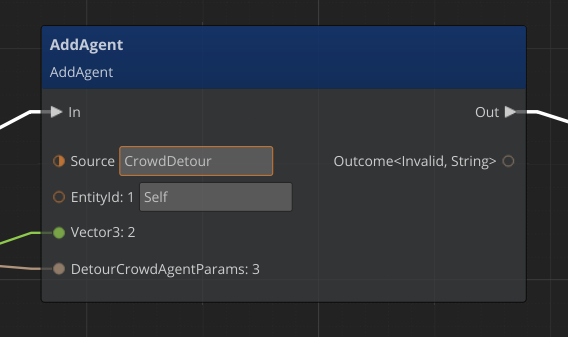
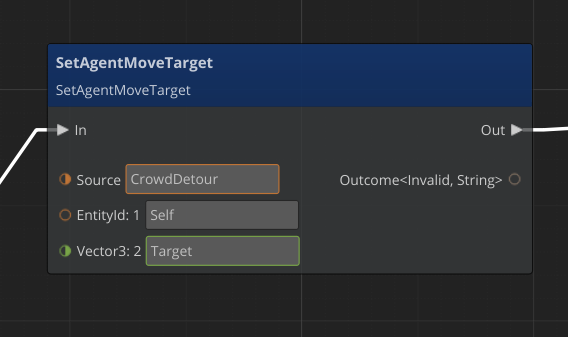
Configure the Source input on each node with your Crowd Entity Id.
Set the EntityId:1 to Agent Entity Id.
Build a
DetourCrowdAgentParamsvalue and connect it to AddAgent (this can be added as a variable).Execute the nodes in this order:
- AddAgent with Agent Entity Id, Start Position, and Agent Params
- SetAgentMoveTarget with Agent Entity Id and Move Target Position
From the node palette, add OnAgentPositionUpdated event from
DetourCrowdAgentNotificationBusto receive agent position updates and drive your entity’s transform.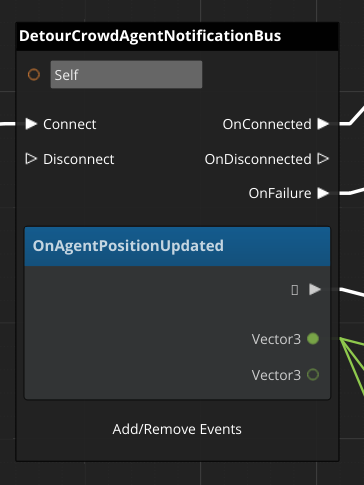
Configuring Agent Behavior
Each agent can be configured with specific parameters that control how it moves and interacts with others. Here are the key parameters:
Movement Parameters
| Parameter | Default | Purpose |
|---|---|---|
| Radius | 0.6 | Collision radius of the agent |
| Height | 2.0 | Height of the agent capsule |
| Max Speed | 3.5 | Maximum movement speed |
| Max Acceleration | 8.0 | Maximum acceleration magnitude |
| Collision Query Range | 7.2 | Distance used for detecting nearby agents |
| Path Optimization Range | 18.0 | Range for path smoothing around obstacles |
| Separation Weight | 2.0 | Strength of separation forces from nearby agents |
| Obstacle Avoidance Type | 0 | Index of the obstacle avoidance quality preset to use (0-3) when Manual Obstacle Avoidance Presets is disabled |
| Query Filter Type | 0 | Index of the navigation query filter used by this agent |
Behavior Flags
These boolean flags enable or disable specific crowd behaviors:
| Flag | Default | Purpose |
|---|---|---|
| Anticipate Turns | false | Enable predictive steering for smoother turning |
| Obstacle Avoidance | false | Enable collision prediction and avoidance with obstacles |
| Separation | false | Enable agent-to-agent separation forces |
| Optimize Visibility | false | Optimize path by going around visible obstacles |
| Optimize Topology | false | Improve path topology quality |
Obstacle Avoidance Quality Presets
When Manual Obstacle Avoidance Presets is disabled, the crowd system uses one of four built-in quality presets:
- Low: Fastest performance, minimal collision prediction
- Medium: Balanced performance and quality
- Good: Higher quality with more accurate predictions
- High: Best quality, most CPU intensive
Obstacle avoidance parameters can be manually tuned when Manual Obstacle Avoidance Presets is enabled.
Note:Each of these presets corresponds to an index used in Obstacle Avoidance Type: Low = 0, Medium = 1, Good = 2, High = 3. When using Manual Obstacle Avoidance Presets, the index is set manually.