
IN THIS ARTICLE
Open Particle System Editor UI
The Particle Editor is used to modify or create particle asset files, which can then be assigned to Particle Components to trigger at runtime.
The Particle Editor UI is accessed by choosing Tools -> Particle Editor in the main editor window.
Main Particle Editor Window Layout
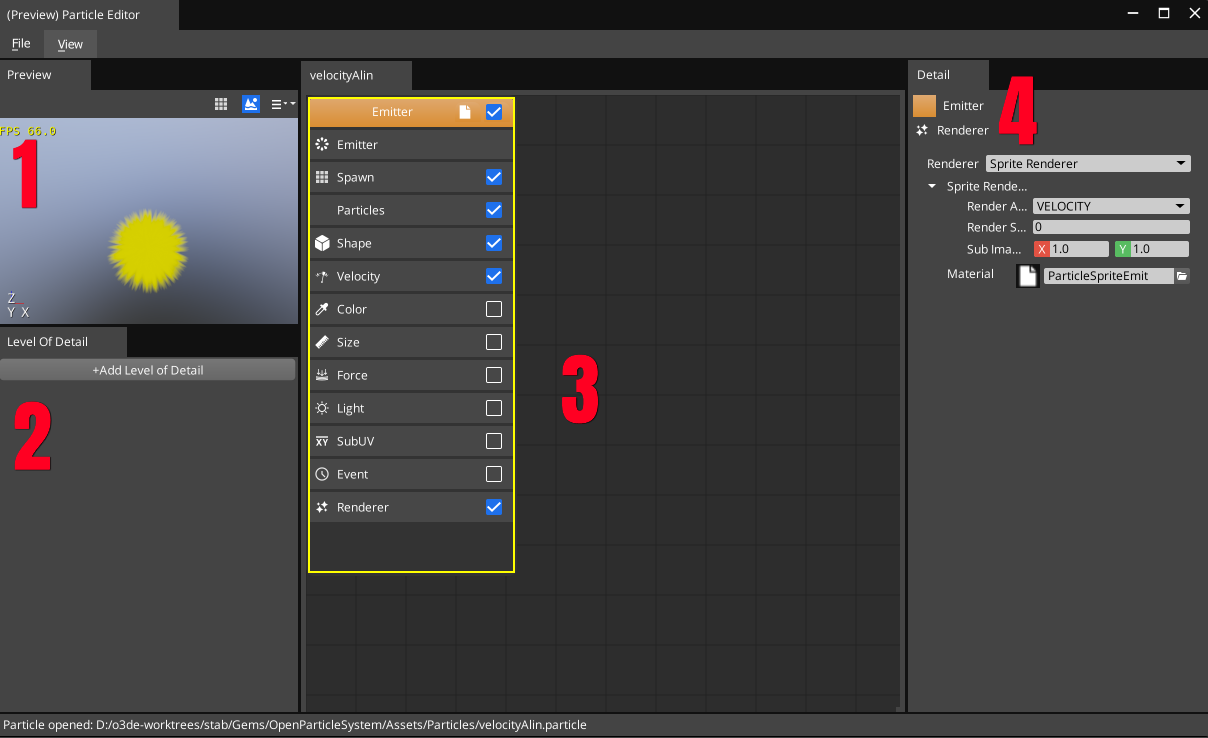
- Preview visualization window
- LOD Window, for adding additional Levels of Detail (LODs) to a particle, which can reduce CPU / GPU load when the particle takes up only a small portion of the screen.
- Emitter display - particles can have more than one emitter. Emitters have modules, each of which can be enabled/disabled by a checkmark.
- Property Display - this shows the properties of the selected object from the Emitter Display.
You can customize this display by hiding and showing windows using the View menu, or dragging the dock bar attachments around.
To Get started, either create a new particle by clicking File -> New, or open an existing one with File -> Open.
Adding additional Emitters
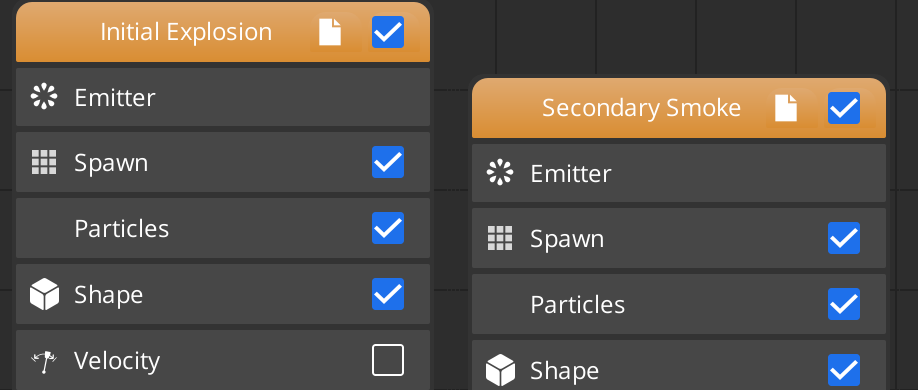
Most of the power of the system comes from the emitter panel - you can Right click in this panel to add additional emitters to the same particle effect:
Renaming Emitters
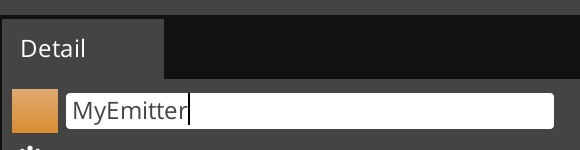
Each emitter can be also be renamed using the emitter properties panel:
Emitter Modules
Emitter Modules are the individual lines in the emitter display, with a checkbox beside each. Each module has its own set of properties, accessed by clicking the module name in the emitter display. This will update the Property Display to show the properties of that module.
The Open Particle System gem comes with a number of example particles which show off the features of the system and its capabilities. The best way to learn is to open those examples and see how each piece works.
Module Reference
| Module | Description |
|---|---|
| Emitter | The Emitter Module (At the top of the emitter module list) |
| Spawn | Controls the rate and timing of particle emission |
| Particles | Controls the basic starting conditions of the individual particles, such as size and velocity |
| Shape | Controls the shape in which particles are emitted (for example, emitting them within the bounds of a sphere) |
| Velocity | Controls how particle velocities change over time |
| Color | Controls how particle colors change over time |
| Size | Controls how particle sizes change over time |
| Force | Simulates physical forces such as vortices, acceleration, drag, or collision |
| Light | Causes each particle to emit actual Atom Renderer lights into the scene (use sparingly) |
| SubUV | Use animated sprite sheets for the particle, by animating the UV coordinates |
| Event | Particles can be spawned by events happening to other particles and their parameters can be inherited |
| Renderer | Selects which renderer to use (Ribbon, Sprite, or Mesh) |